What is vocaBull 2?
vocaBull 2 (‘vb2’ for short) is a modern remake of a flashcard web app: vocaBull 1 (‘vbs’). vb2 is unique in that it adopts the lenient SRS (Spaced-Repetition) learning methodology, which makes vb2 a better fit as a vocabulary building partner in your real life.
The github repo is here.
Hybrid learning method
vb2 adopts a hybrid learning method of:
- Shifting Learning Window (SLW) — frequency-based repetition for words you are actively learning. Details here.
- SRS — time-based scheduling for words that are marked as ‘review’ (ie, memorized)
Lenient SRS
spaced-repetition (SRS) is an algorithm for optimal memorization backed by academic studies (see the Wikipage link for more info).
Once memorized, you will see the word for review according to SRS scheduling. At first - the next day, next - 2 days later, then 4 days later, 8 days, 16, 32, 64, etc.
vb2’s SRS implementation is lenient and humane. vb2 understands that you can’t necessarily practice everyday. You have weekends, vacations, and days when you don’t feel like learning.
Unlike pure SRS which schedules absolute ‘due’ dates for review, vb2 has a due date counter for word, and decrements the counter only when you actually practice the book. That is, if you skipped study for 30 days, vb2 decrements the counter by only one day instead of 30 days, not flooding you with due words.
Learn new words with voices
Many of you want to learn new words with voice. vb2 will pronounce words, definitions and sample sentences for you with browser’s SpeechSynthesis capabilities.
You don’t have to add voice data. It’s already there and free of charge.
If you enable Autoplay in a practice session, vb2 pronounces words on the flashcard automatically when you flip the card or move to the next card. You might be surprised to find that you can memorize a new word just tapping a card several times.
Optimized UI for both Mobile and PC
You can use vb2 on your mobile phones, tablets and/or PCs. On mobile devices, swiping cards should feel snappier than tapping buttons. Autoplay mode also goes well with mobile devices.
On PC, you can use keyboard shortcuts in learning sessions, which you can operate faster and more comfortable with than using a mouse/track pad.
Multiple device sync
Your learning progress is synced with the central server from any device. For example, you can study on the home PC in the morning, switch to your mobile phone on commute, and switch back to the PC at night.
Don’t forget to sync with the server and save the progress before switching to a different device. To do so, you can either manually sync with the server or quit the practice mode (auto-sync).
Practice offline
If you chose a book and are navigated to the words view, or even started practicing, all words and progress information is loaded to the device. After the loading, you can practice words without a network connection (ie, offline).
One caveat is that you’ll need to sync to the server and save the progress once you are online again. Don’t switch to a different device without saving.
Quick and easy deck (word data) generation
As a newly developed app, vb2 doesn’t have user-created decks. But it is extremely easy to prepare one with the help of AI. It will only take a few minutes. See here for details.
Getting started
I have deployed vb2 on PythonAnywhere (PA) for live demo. I’ll explain how to use one on PA. Note: If you deployed vb2 on your local PC or somewhere else, the URL will be different.
Sign in
- Open a browser from your mobile device or PC, and visit https://achiwa912.pythonanywhere.com > click
Sign in with Google> Choose an account
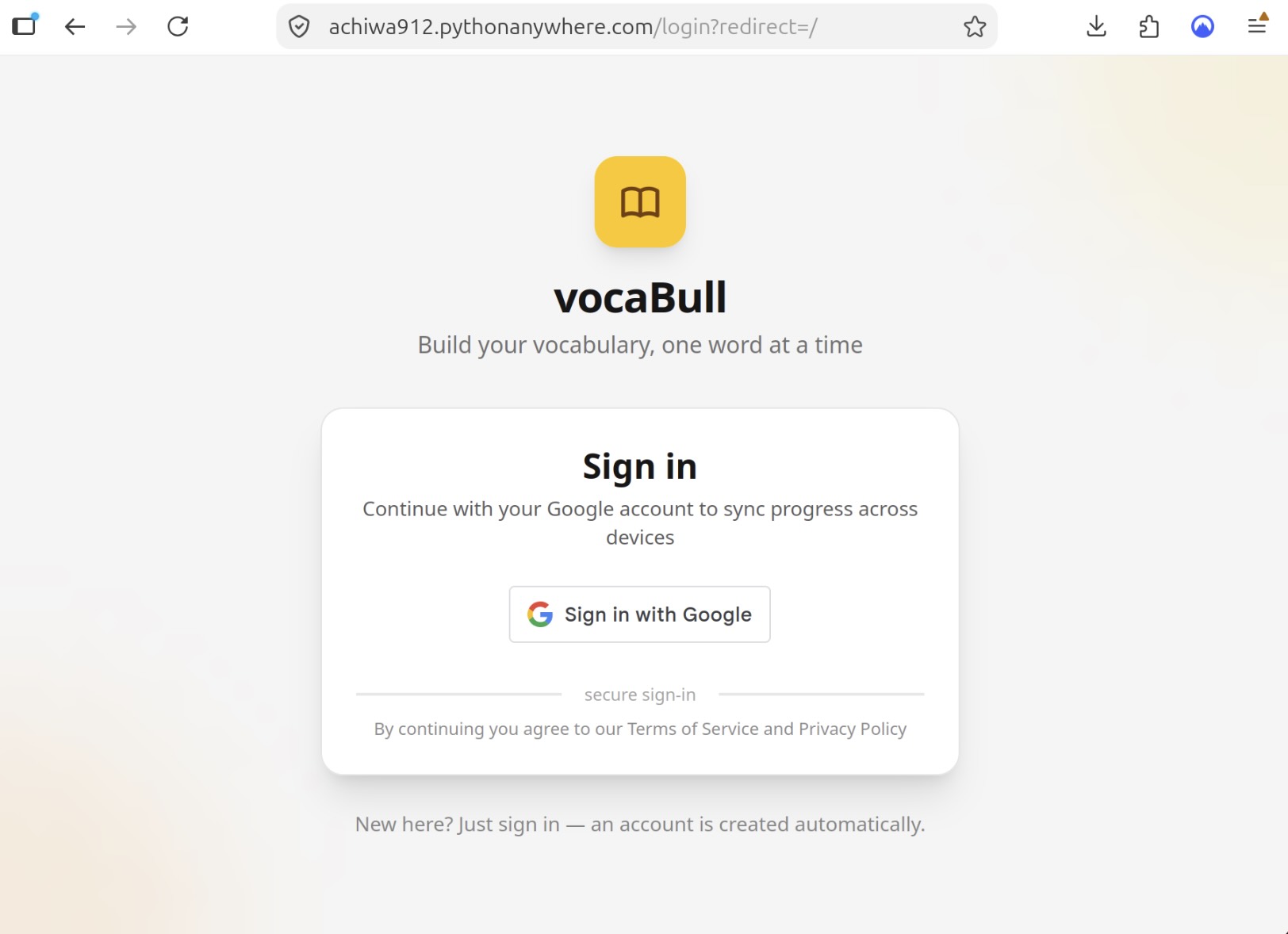
- Your account is created and you are signed in to vocaBull 2 (vb2)
Create a word book
- After signing in, you are on the books view. Click
Add bookbutton.
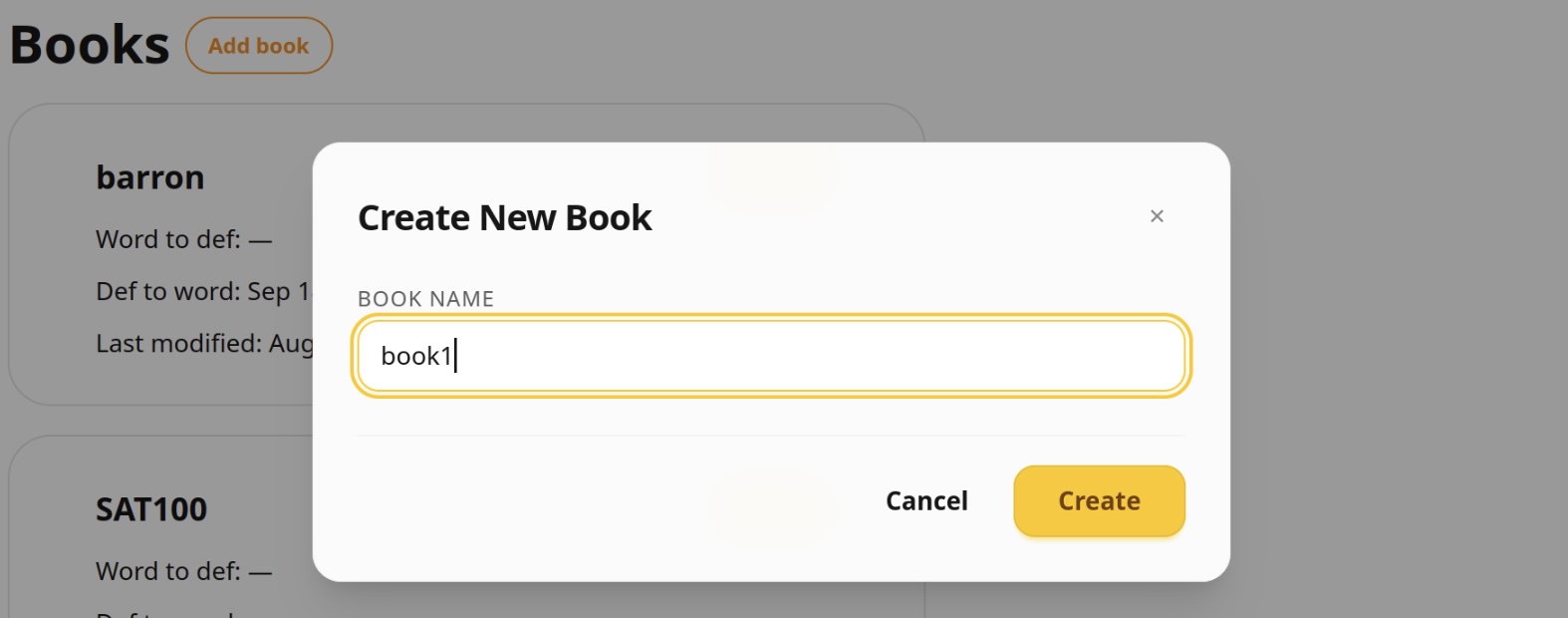
- Create New Book modal window opens > enter book name (eg, book1)
- > click
Create> Click the newly created book card
Register a few words to the word book
- > you are navigated to words view > click
Add wordbutton
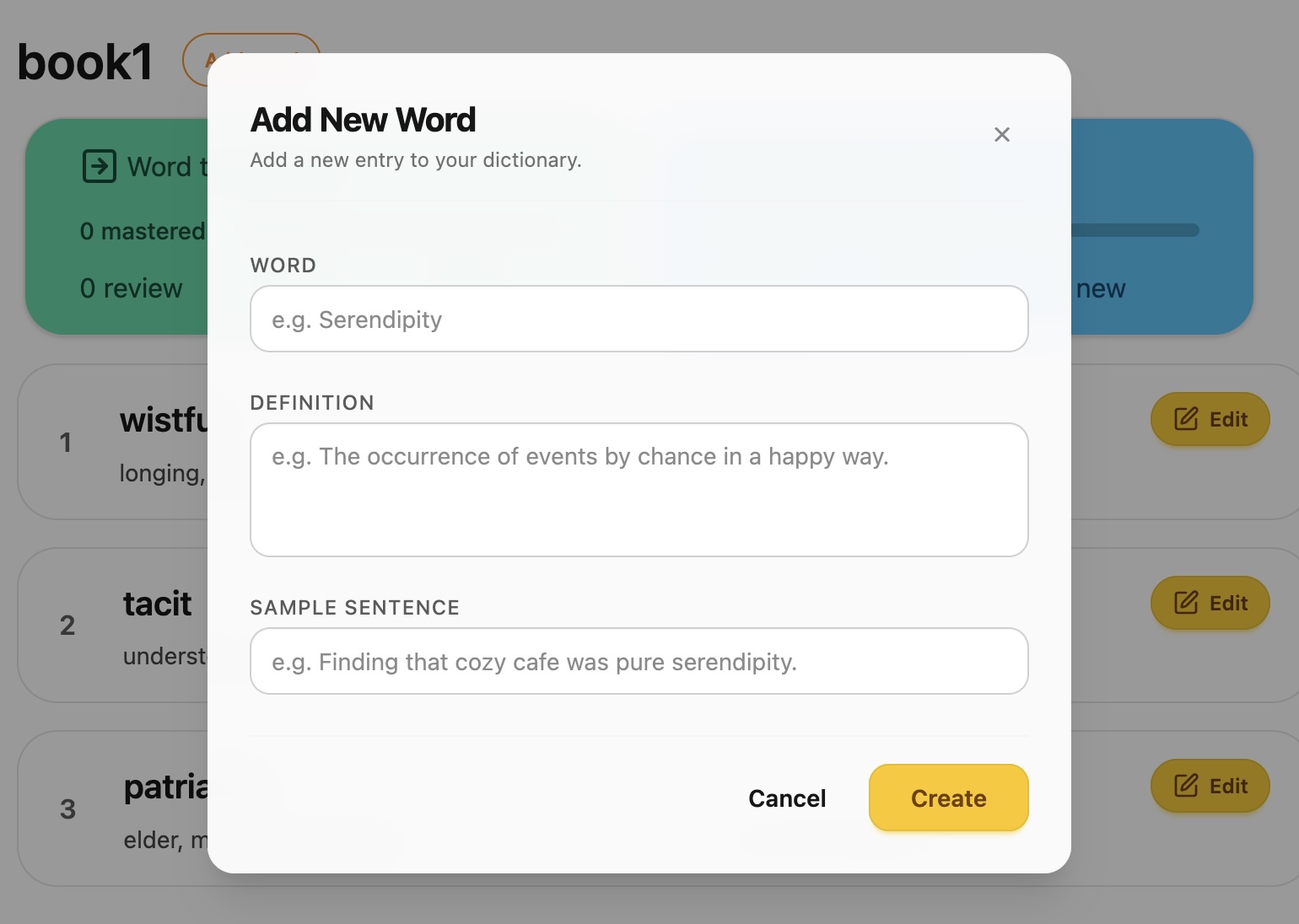
- > enter word, definition, and sample sentence > click
Create - > you see the word registered for the book
- > Repeat steps and register a few more words
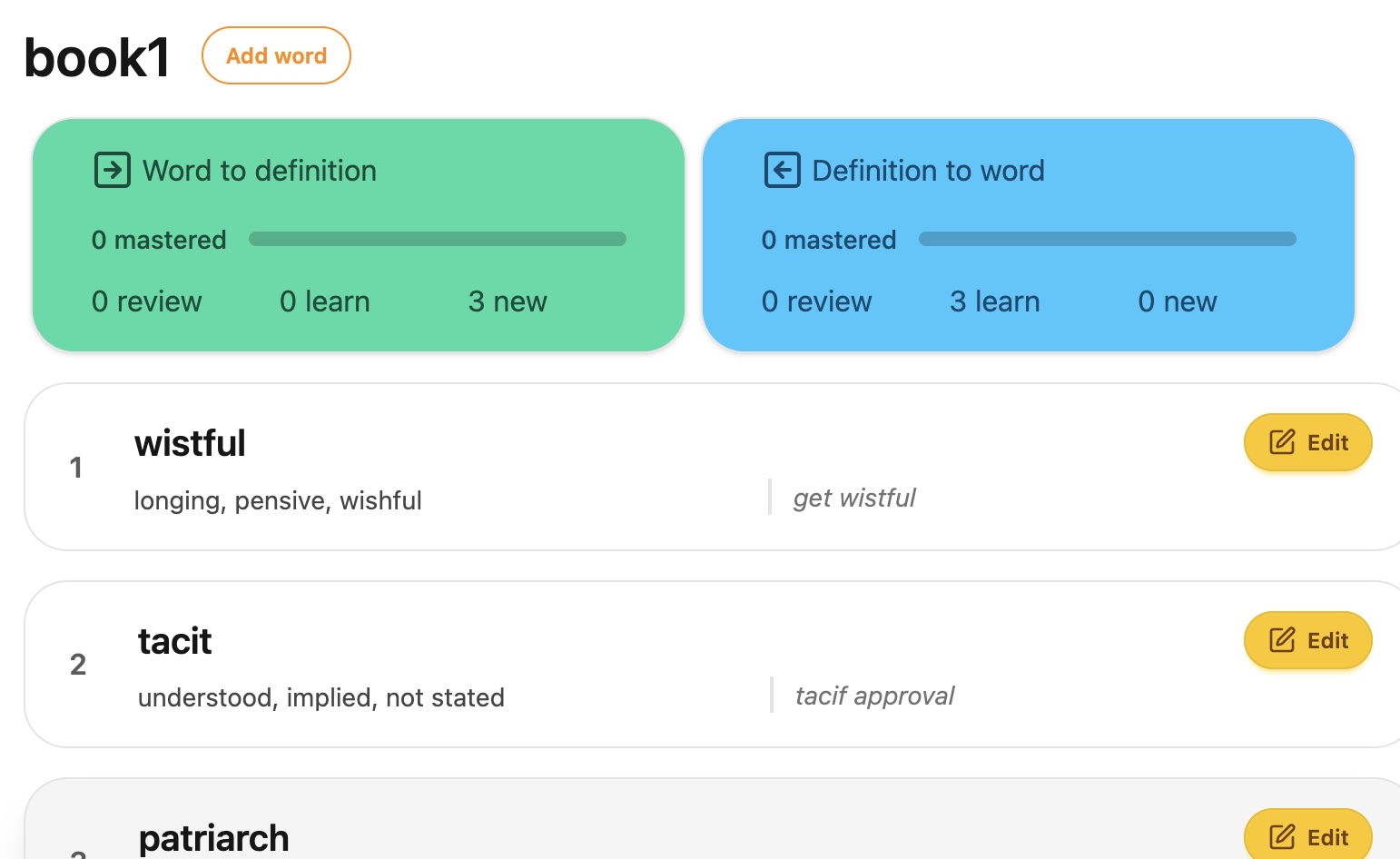
Practice
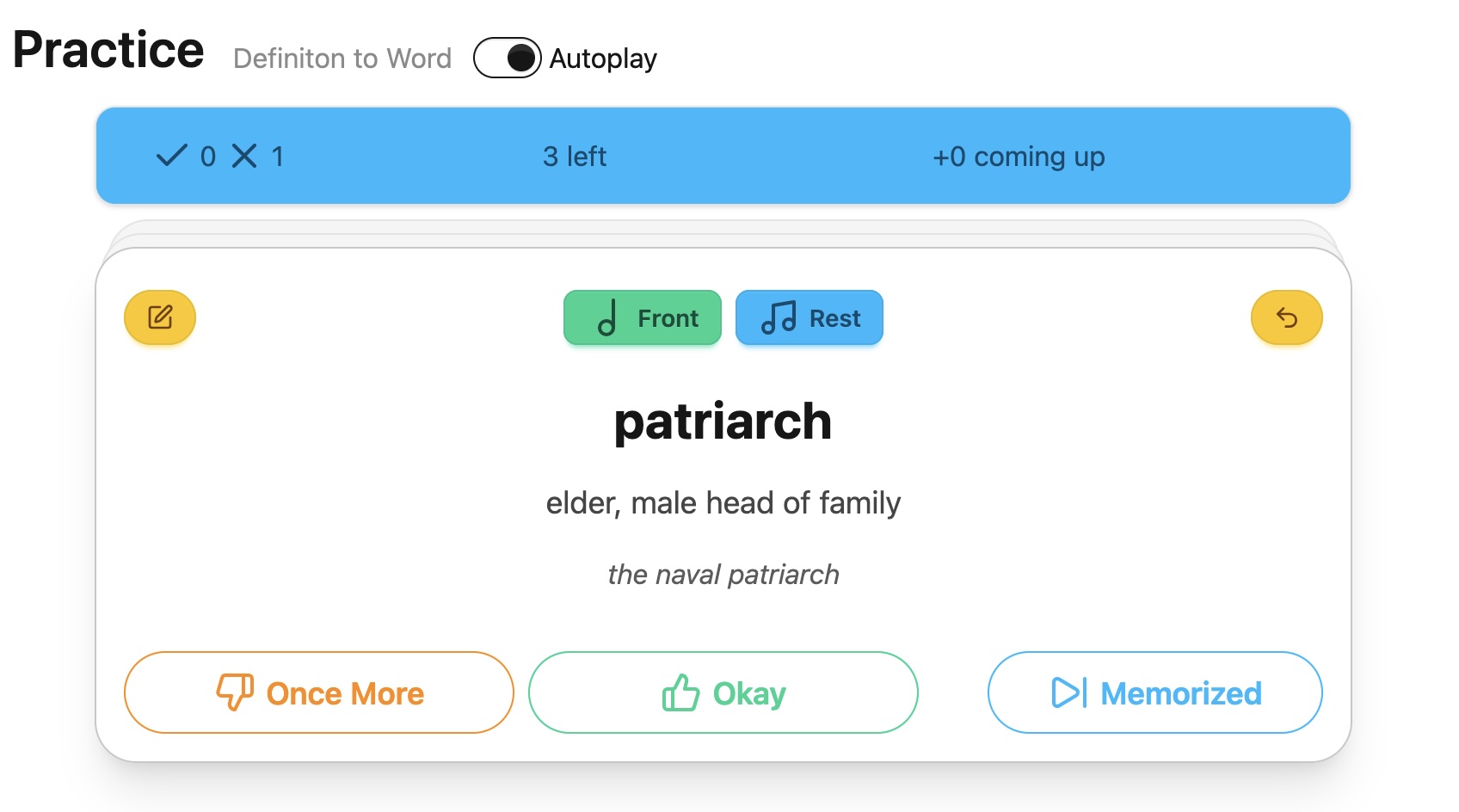
- vb2 has 2 practice modes,
word to definitionanddefinition to word. Let’s trydefinition to word - on words view, click
Definition to wordcard (the blue one) - you are navigated to practice view. you see a card and 7 buttons on it
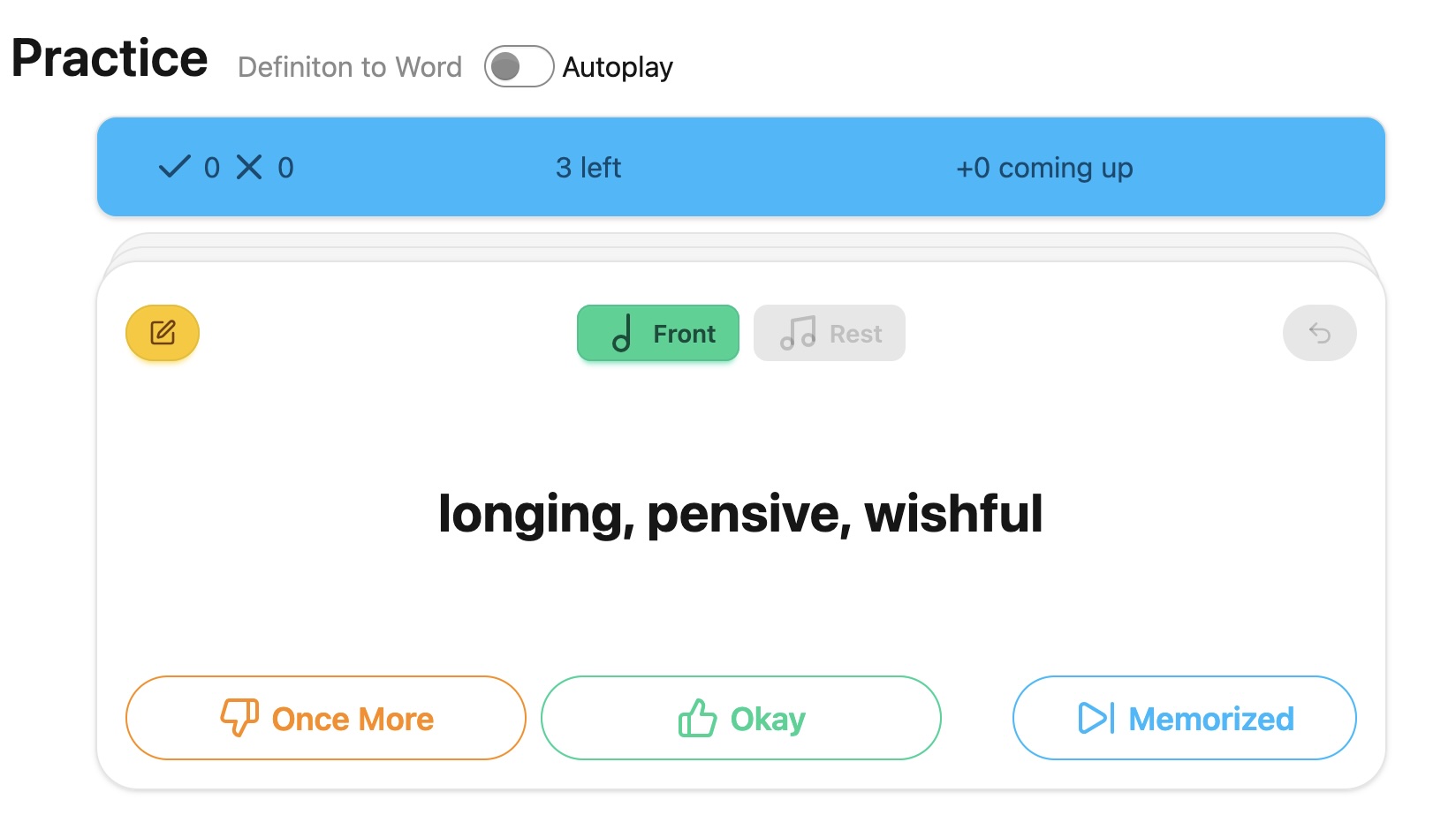
Front and back
- for
definition to wordmode, the card (front) shows the word’s definition. you need to guess what the word is- likewise, for
word to definition, you see a word on the front. you need to guess what the meaning is
- likewise, for
- if you click (or tap on mobile) the card, it is flipped, and the back of the card is shown
- the back has word (the answer), definition and a sample sentence
- this is the same for
word to definition
- this is the same for
- if you click/tap the card again, it is flipped to show front. you can flip as many times as you want
Pronounce buttons and Autoplay mode
- if you click
FrontorRestbutton, vb2 will pronounce them for you with browser’s SpeechSynthesis capabilityFront- pronounces definition (word ifword to definition)Rest- pronounces the rest, ie, word and sample sentence (definition and sample sentence ifword to definition)
- if you enable
Autoplaytoggle switch, vb2 automatically pronounces words in the practice session- flip card to front or back - pronounces front or rest
- move to the next card - pronounces front
Okay/Memorized and Once More buttons
- if you know the word, you click
Okaybutton, and the word becomes ‘waiting’ state. It will show up later again after 9 or more other words - if you don’t know the word, you click
Once morebutton, the word will be (or stay) in the ’learning’ state. And it will show up shortly after 4 other words. You’ll see the same word again and again until you click eitherOkayorMemorized - if you click
Okayfor a ‘waiting’ word, it will be ‘review’ state. Words in ‘review’ state will show up again a day or more later- first next day, next 2 days later, then 4 days later, 8, 16, 32, 64, 128, 256, 256, 256 (capped at 256),if you continue to click ‘Okay’ for review
- the
Memorizedbutton will move the word straight to ‘review’ state (ie, skipping ‘waiting’ state) from ’learning’ state- for words of ‘waiting’,
Memorizedbutton behaves the same asOkaybutton - for words of ‘review’, the multiplexer value of review interval for
Memorizedis 3. First 2 days later, then 6 (=2x3) days, 18 (=6x3) days, 54 (=18x3), 162, 256, 256, 256 (capped at 256)
- for words of ‘waiting’,
- if you click
Once More, the word will be ’learning’ state again, and you need to start over for the word - The practice progress will be synced to the server when you are navigated back to words view or books view, or if you manually choose
Syncfrom the top-right menu- Don’t forget to sync with server. If you close the vocaBull tab, reload the page or quit the browser without syncing, the practice progress in the session will be lost, which is not critically damaging due to ’lenient’ SRS
| action | learning | waiting | review |
|---|---|---|---|
| okay | to waiting | to review (1 day) | x2 days |
| memorized | to waiting | to review (2 days) | x3 days |
| once more | - | to learning | to learning |
Undo and edit word
If you mistakenly clicked Okay, Memorized or Once More button, you can undo the operation by clicking the top-right undo icon on the card. You can go back as many okays, once moers, etc. as you’d like, but undo data is cleared once you leave a practice session.
You can also edit the word from here by clicking the top-left edit word icon on the card, making your cards personalized for better memorization. The disturbance of editing a word during a practice session is minimal. You can quickly go back and resume the session.
Mobile and keyboard operations
On a mobile device, you can swipe the card right (Okay) or left (Once More) as well. vb2 also supports keyboard shortcuts. These are on practice view only.
Type ? for keyboard shortcut help. The help is displayed for 10 seconds, or until you type any key or click a mouse/tap.
| mobile | keyboard shortcuts | action |
|---|---|---|
| swipe left | h, left arrow | once More |
| (tap Memorized) | j, lower arrow | memorized |
| tap card | k, upper arrow, space | flip card |
| swipe right | l, right arrow | okay |
| (tap Front) | n | speak front |
| (tap Rest) | m | speak rest |
| (toggle Autoplay) | A (shift+a) | toggle autoplay |
| (tap undo icon) | U (shift+u) | undo |
| (tap book name) | ESC | navigate to words views |
| - | ? | show shortcut help |
CSV bulk import
vb2 supports bulk word import on the words view. You can create a csv file containing many words and import from words view > click top-right (navbar) menu > choose Import CSV. Then, you can choose a csv file and upload it to the vb2 server.
The same word will be skipped to import, so it’s safe to try importing the same file multiple times.
Use AI to generate personalized deck
You can very easily generate such a csv file if you ask AI.
Here is a sample AI prompt to generate such a text (tested with ChatGPT; GPT-5.6 Luna). You can copy & paste the AI output to a .csv file (eg, ’test.csv’) and import to vb2.
Can you create 10 SAT word data for a flashcard app in a code snippet? The format is (note: <\t> is a tab). One word per line: word<\t>definition<\t>sample sentence
You can change “10” and “SAT” to fit your needs. You can also customize the generated cards, for example:
- I prefer short and concise definitions and samples.
- Use baseball as the theme for sample sentences.
- Write definitions in Japanese.
- Make the words appropriate for an intermediate English learner.
This means you don’t have to rely on a generic pre-made deck. You can create vocabulary cards that fit your own goals, interests, and learning style. The key word is to personalize your deck. It’s a prompt away.
Supported CSV file format
- one word per line
- a line contains word, definition and optional sample sentence
- separator can be
,(comma),;(semi-colon) or\t(tab) - use the same separator in a file
- double-quote to escape
- examples:
wistful,"longing, pensive, wishful","get wistful"
tacit<\t>understood, implied, not stated<\t>tacit approval
Export all and import all
vb2 is still alpha quality. You should periodically export all your books, words and practice progress in a local file so that you can recover them when the database is corrupt.
- If you click
vBicon or ‘vocaBull’ on the navigation bar, you are navigated to the books view - On books view, the top-right menu has
Export AllandImportitems - If you choose
Export All, you can save all books, words and practice progress in a local file, which can be imported later- Import tries to reconcile conflicts. You won’t (hopefully) see word or other duplicates if you import just after export, or if you import the same file twice
Tips
- Personalize your deck. Edit words while practicing
- You can also edit word from an icon on a flashcard. Use it often.
- Always use
Autoplay. Learn with your ears as well as with your eyes. - Use AI to generate decks that fit your needs (eg, SAT, Toefl, Toeic)
- Then personalize them (while practicing)
Misc
Report bugs
Bug reports are welcome. If you find a bug, please open an issue here on github repo: https://github.com/achiwa912/vb2/issues
Links
- live demo on PythonAnywhere: https://achiwa912.pythonanywhere.com/
- github repo: https://github.com/achiwa912/vb2
- blog post - vocaBull 2 - a remake of a flashcard web app
- blog post - Deployed vocaBull 2 on PythonAnywhere
- blog post - vocaBull 2 - AI-assisted development
Tech stack
| Layer | Technology |
|---|---|
| Backend | Python 3.13, Flask, Pydantic, SQLAlchemy, sqlite3 |
| Frontend | Vue 3, TypeScript (built with pnpm), TailwindCSS, DaisyUI, Pinia |
| Packaging | uv (backend), pnpm (frontend) |
| Auth | JWT + Google OAuth |
| Deployment | PythonAnywhere (manual WSGI configuration) |
- I chose Flask over FastAPI for vb2 as I wanted to deploy vb2 on PythonAnywhere on which async is still beta.